Discord RSS Integration: Connect a Feed Step by Step
Set up RSS or Atom in Discord with dashboard screenshots. Pick a channel, preview the post, and troubleshoot missing or duplicate entries.
 News.gg Team
You can send updates from a blog, release page, or publication to a Discord text channel with News.gg. Start with one public RSS or Atom feed and a channel where your members expect those updates.
1. Copy the feed URL
Look for an RSS or Atom link on the publisher’s site. The address may end in /feed, rss.xml, or atom.xml, but the publisher can use any path. Copy the feed address rather than the address of a single article. Opening the feed in a browser often shows XML with recent entries.
To follow along, use the Next.js Blog feed.
2. Add News.gg to your server
Add News.gg to Discord and select a server you manage. In the News.gg dashboard, open that server and select RSS Feeds. Use the source picker to find the publisher, or select Add a custom feed and paste the feed URL. You can also start setup in Discord with /setup.
3. Choose the destination channel and save
Pick a text channel such as #blog-updates or #release-notes. Check that News.gg can view the channel, send messages, read message history, and embed links. Then select Continue to settings.
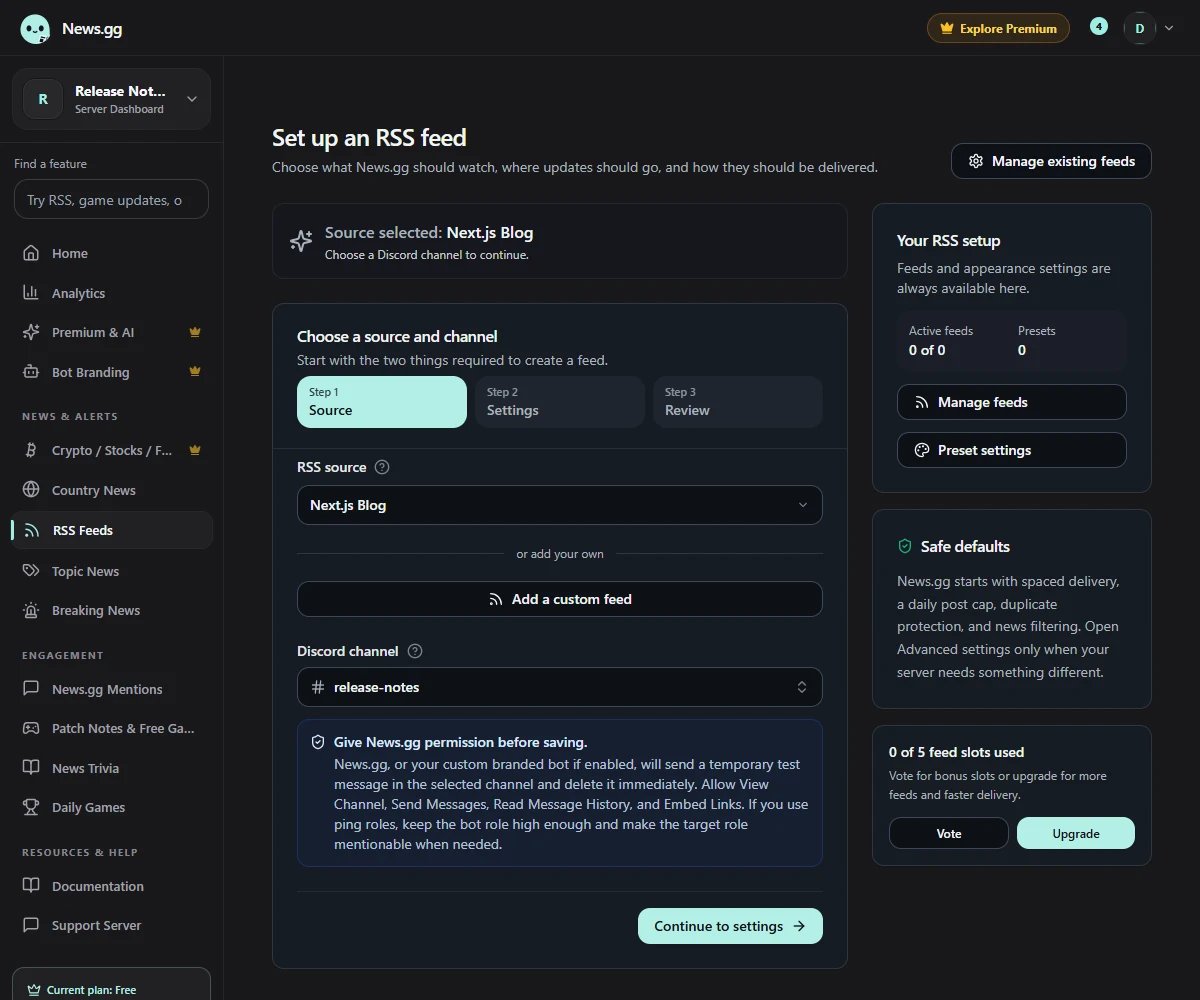
Keep the suggested delivery settings or adjust them for your channel. Select Review feed to check the source, destination, and Discord preview, then select Save RSS feed. News.gg posts matching new entries after it checks the source. Timing depends on your plan and when the publisher updates the feed.
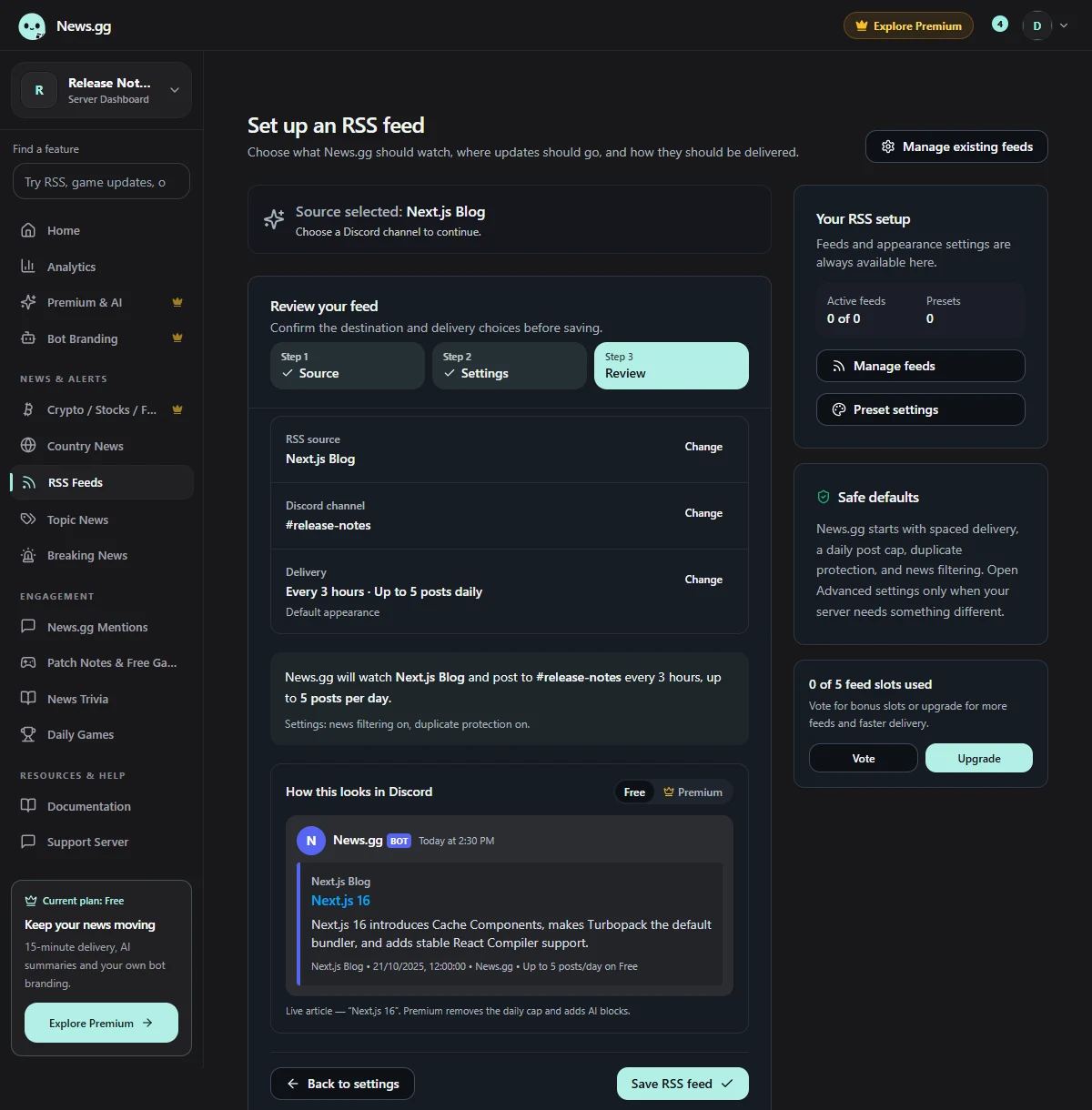
What a post looks like in Discord
This preview uses the real Next.js 16 release announcement. Select the headline to open the publisher’s article.

Next.js 16 introduces Cache Components, makes Turbopack the default bundler, and adds stable React Compiler support.
 News.gg • newsdiscordbot.xyz
What to check if posts are missing
- The bot cannot see the channel. Check the channel’s permission overrides for News.gg. A server role can grant access while the destination channel denies it.
- The source has not published since setup. Check the feed for a new entry. An older article on the site may already be in the feed or may never have been included in it.
- Your filter excludes the entry. Review any include or exclude rules and compare them with the title and text in the feed.
- You hit the free feed limit. Use
/setupto edit your choices or replace a source you no longer need.
If two sources publish the same material, start with the publisher’s original feed and add a second source only when it covers something different. This makes it easier to see which source generated each post.
See the RSS Discord bot page for an example of a feed post in a Discord channel.
Send a newsletter to a Discord channel
If a newsletter offers a public archive with an RSS or Atom feed, copy that feed URL and follow the same steps. Try it in #newsletter and confirm a new issue posts with the correct link. For email-only or paid issues, ask the publisher about a shareable feed or public archive.
If you want an RSS reader to receive announcements that originate in Discord, see how to publish Discord announcements as RSS.
Still choosing a bot? Compare RSS Discord bots by free feed limits, update intervals, and filters.
For a project release channel, see how to send GitHub releases to Discord. If your existing feed is quiet, use the RSS delivery troubleshooting checklist.